

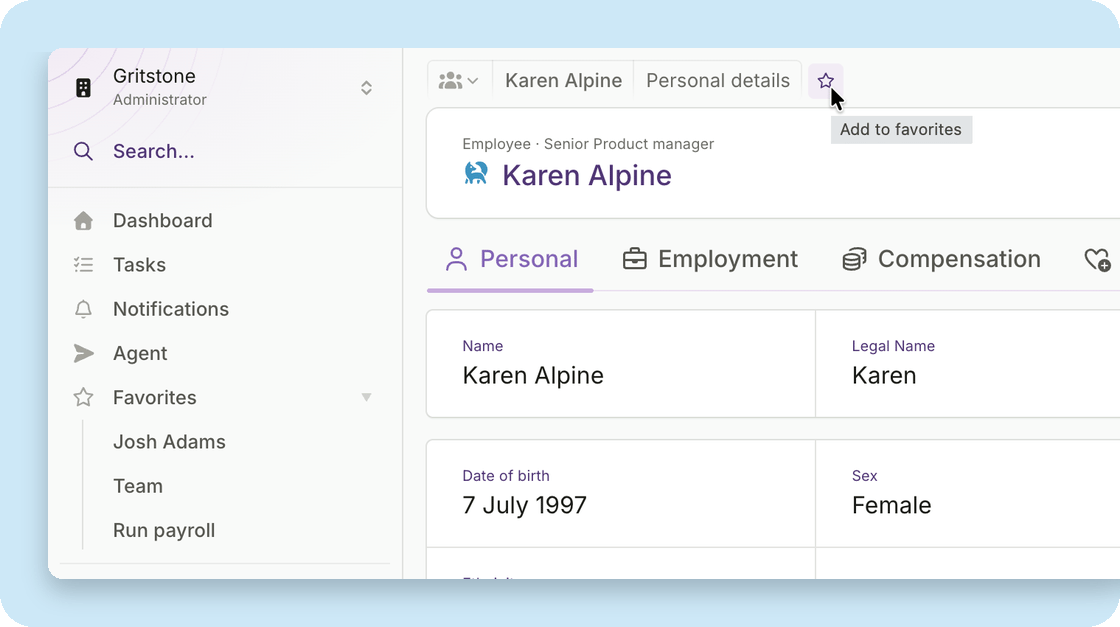
Arrange the sidebar around your work
Right-click any item in the sidebar to reach the Sidebar settings page. Reorder the items to suit how you work, and hide the ones you don’t use. Hiding applies to the top-level items. For example, hide Payroll and the items underneath it go, too. Your own items always show, and anything you hide moves into More, just above Configure. Reset puts everything back the way it started.Keep what you use in Favorites
Favorites appear in your sidebar once you add the first one, below your own items and in the order you added them. Today you can favorite:- any page in the sidebar
- a saved view
- a person
Other improvements
We continue to make changes across Plane to unify its design and improve the experience.- Every page shows how you got there: The path at the top names where you are and the steps that got you there, and any earlier step takes you back.
- Type a date instead of clicking through months: Every date field takes typed input, such as next Tuesday or 05/19/27, and the calendar shows you the match before you commit it. Pay periods and the days in a time off request work the same way.
- Clearer explanations on pages: A page for a feature your workspace has not turned on now says what it does and how to start. A page for something you have not used yet shows you how to begin. And when you have worked through everything on a page, it tells you that you are caught up.
- One set of styles across Plane: More screens across the app now use the same set of styles, which gives us a strong foundation as we continue to make improvements.